
The Problem This Solves
Tracking payments shouldn’t require a spreadsheet, a notebook, and a good memory. Yet many small business owners juggle exactly that—trying to remember which client paid cash last Tuesday, whether that check cleared, and how much is still owed on the big project invoice.
Without organized payment tracking:
- Cash payments get forgotten or recorded incorrectly
- Partial payments create confusion about remaining balances
- Reconciling at tax time becomes a multi-day headache
- Outstanding invoices slip through the cracks
Pronto Invoice centralizes all payment information. Record payments in seconds, link them to invoices automatically, and always know your exact accounts receivable status.
How Payment Tracking Works
Recording a Payment
When you receive money, create a payment record:
- Select the client
- Enter the amount received
- Choose the payment method
- Apply to one or more invoices (optional)
- Save
The invoice balance updates immediately. If the payment covers the full amount, the invoice status changes to Paid.
Automatic Online Payments
When clients pay through your payment link (Stripe integration), you do nothing:
- Payment records automatically
- Invoice marks as Paid
- Client receives a receipt
- You get notified
No manual entry. No reconciliation. The payment appears in your records, already matched to the invoice.
Supported Payment Methods
Record payments received through any method your clients use:
| Payment Method | Use Case |
|---|---|
| Cash | On-site payments, COD jobs |
| Check | Mailed payments, larger transactions |
| Credit Card | Online payments, in-person card swipes |
| Debit Card | Client bank card payments |
| ACH Bank Transfer | Direct bank-to-bank transfers |
| PayPal | Online PayPal transactions |
| Venmo | Mobile peer-to-peer payments |
| Zelle | Bank app transfers |
| Apple Pay | Mobile contactless payments |
| Google Pay | Mobile contactless payments |
| Stripe | Online payment link processing |
| Other | Any method not listed above |
Each payment record stores the method used, making it easy to filter and report by payment type.
Applying Payments to Invoices
Single Invoice Payment
The most common scenario: one payment for one invoice.
- Create the payment
- Select the invoice it applies to
- The full payment amount applies automatically
The invoice balance drops to zero and status changes to Paid.
Partial Payments
Client paying in installments? Collecting a deposit?
- Create a payment for the amount received
- Apply it to the invoice
- The invoice shows the remaining balance
The invoice status changes to Partial until the balance reaches zero.
Example: A $2,000 project invoice. Client pays $1,000 deposit.
- Record $1,000 payment applied to the invoice
- Invoice now shows $1,000 balance remaining
- Invoice status: Partial
Multi-Invoice Payments
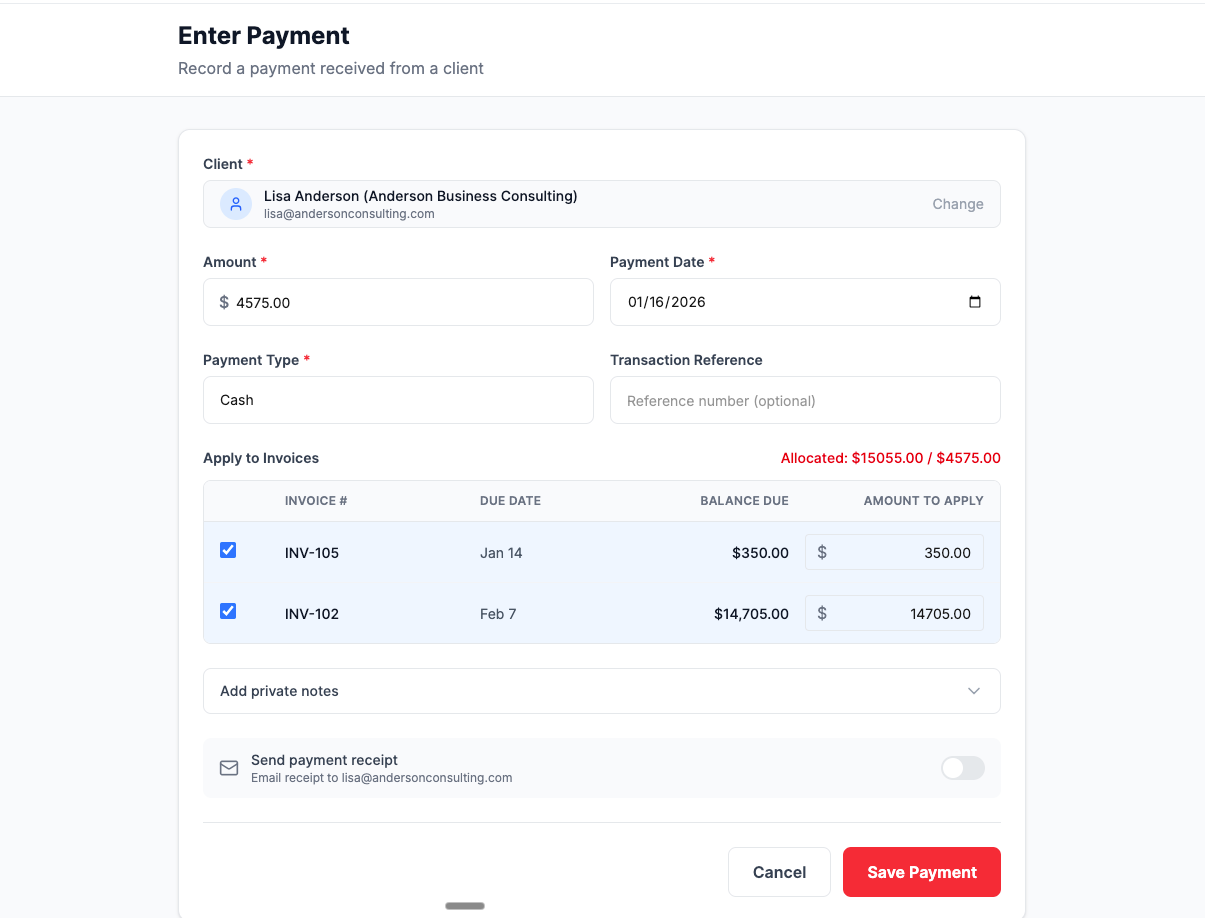
When a client sends one payment covering multiple invoices:
- Create a payment for the total amount
- Select all invoices to apply it to
- Specify how much applies to each invoice
Example: Client sends $3,500 check covering three invoices:
- INV-0040: $1,000 (apply $1,000)
- INV-0041: $1,500 (apply $1,500)
- INV-0042: $1,000 (apply $1,000)
One payment record, three invoices marked Paid.
Unapplied Payments
Sometimes you receive money before creating an invoice—a retainer from a new client, for instance.
- Create a payment without selecting any invoice
- The payment saves with status Unapplied
- Later, edit the payment to apply it when you create the invoice
Unapplied payments remain visible in your payment list so you remember to match them.
Payment Statuses
Every payment has a status indicating how it’s been allocated:
| Status | Meaning |
|---|---|
| Completed | Payment fully applied to invoice(s) |
| Partial | Payment partially applied; remaining balance exists |
| Unapplied | Payment received but not yet linked to any invoice |
| Refunded | Payment has been fully refunded |
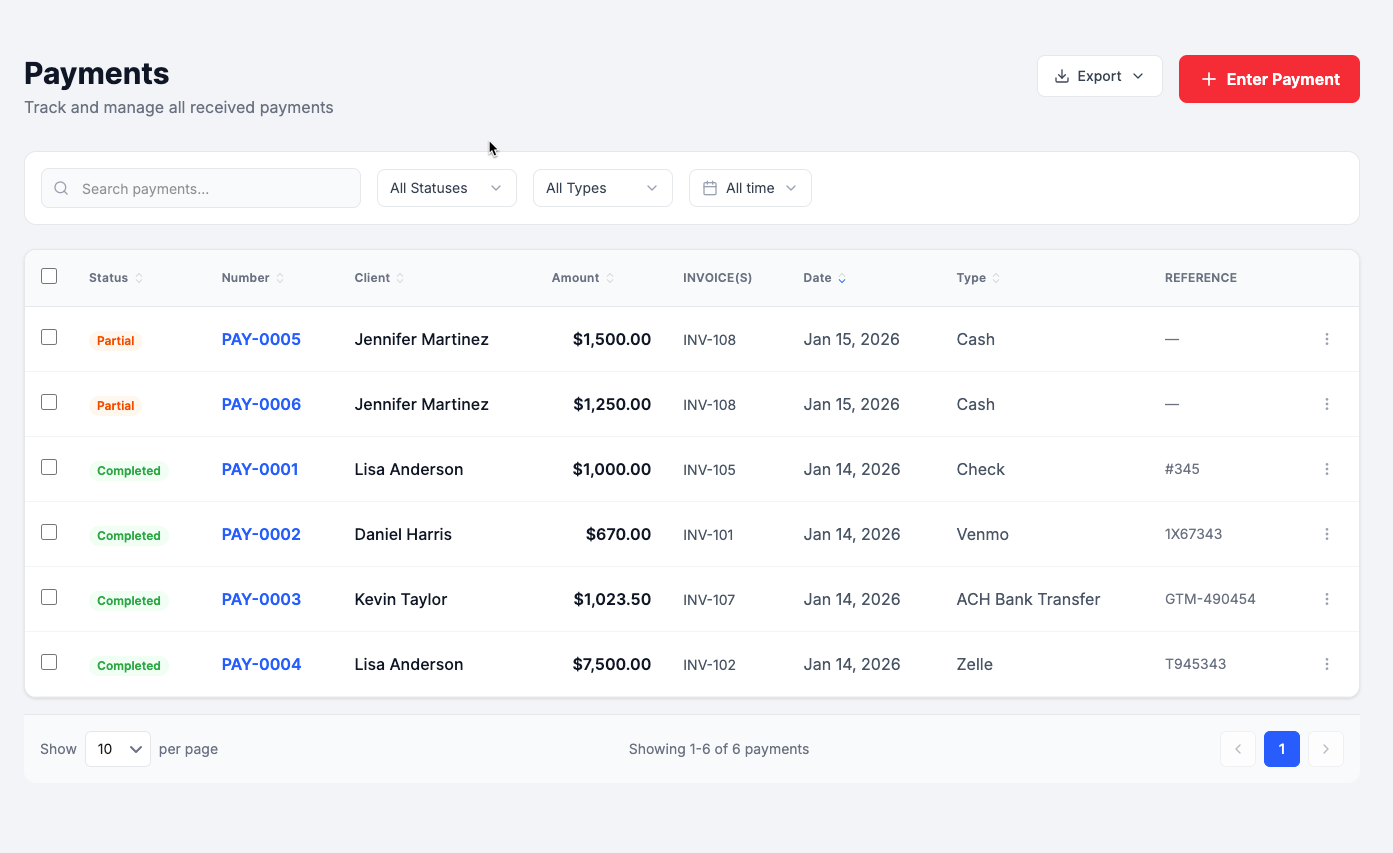
The payment list displays status badges so you can quickly identify payments needing attention.
Payment Details
Each payment record includes:
Required Information
- Payment Number – Auto-generated (PAY-0001, PAY-0002, etc.)
- Amount – Total payment received
- Payment Date – When the payment was received
- Payment Method – How the client paid
- Client – Who made the payment
Optional Information
- Transaction Reference – Check number, confirmation code, or transaction ID
- Private Notes – Internal notes visible only to you (never shown to clients)
- Send Receipt – Option to email a receipt to the client
Automatic Information
- Status – Calculated based on invoice allocations
- Created By – User who recorded the payment
- Timestamps – When recorded and last updated
Viewing and Finding Payments
The Payment List
All payments appear in a sortable, filterable list showing:
- Payment number
- Status
- Client name
- Amount
- Payment date
- Payment method
- Transaction reference
- Linked invoices
Filtering Options
Find specific payments quickly:
- Status – Show only completed, unapplied, partial, or refunded
- Payment Method – Filter by cash, check, credit card, etc.
- Date Range – Payments within a specific time period
- Search – Find by payment number, client name, amount, or reference
Sorting
Click any column header to sort:
- By date (newest or oldest first)
- By amount (highest or lowest)
- By client name (alphabetical)
- By payment number
Processing Refunds
When you need to return money to a client:
- Open the payment record
- Click Refund
- Enter the refund amount (full or partial)
- Add a reason (optional, for your records)
- Confirm
What Happens After a Refund
- Payment status updates to Refunded (if fully refunded)
- The
refundedAmountfield tracks how much was returned - Linked invoice balances restore proportionally
- If the original payment was via Stripe, the refund processes automatically to the client’s card
Partial Refunds
Need to return only part of a payment? Enter the partial amount. The payment remains active with the remaining balance still applied to invoices.
Example: Client paid $800 for a job, but scope reduction means only $600 of work was done. Process a $200 partial refund—client gets $200 back, invoice shows correct $600 amount.
Editing and Deleting Payments
Editing a Payment
You can update:
- Payment date
- Payment method
- Transaction reference
- Private notes
- Invoice allocations
You cannot change after creation:
- Payment amount
- Client
To change the amount or client, delete the payment and create a new one.
Deleting a Payment
Deleting a payment:
- Removes the payment record
- Restores the balance on any linked invoices
- Cannot be undone
Note: Refunded payments cannot be deleted—they remain in your records for audit purposes.
Exporting Payment Data
Export payment records for accounting, tax filing, or reporting:
Export Formats
- CSV – For spreadsheets and accounting software import
- PDF – For printed reports and records
- XLSX – For Excel with formatting preserved
Export Options
- Export all payments
- Export filtered results (by date range, status, payment method)
- Export selected payments (bulk select specific records)
Who Payment Tracking Is For
Field Service Professionals
Electricians, plumbers, HVAC techs, and contractors collecting payment on site. Record that cash or check payment before you leave the job—no more forgetting to log payments collected in the field.
Use case: Complete an AC repair, collect $350 cash, tap to record payment, invoice marks as Paid. Done before you start the truck.
Freelancers
Designers, consultants, and creatives tracking client payments across multiple projects. See all incoming payments in one place, know exactly which invoices are paid, and never lose track of partial payments on larger projects.
Use case: Client pays 50% deposit on a $4,000 website project. Record the $2,000 payment, see the remaining $2,000 balance clearly on the invoice.
Small Business Owners
Shops, service businesses, and local companies managing daily transactions. Whether clients pay cash at the counter, mail checks, or click payment links—everything tracked in one system.
Use case: End of day: filter today’s payments, see $2,400 in credit cards, $650 cash, $800 in checks. Export for bookkeeper.