
The Problem with Manual Recurring Billing
If you have clients on retainers, maintenance contracts, or subscription services, you’re probably recreating the same invoice every month. That means:
- Remembering which clients need invoices and when
- Manually entering the same items, amounts, and details repeatedly
- Risking missed billing cycles when you’re busy with actual work
- Late invoices leading to late payments and cash flow problems
For a contractor with 10 monthly maintenance clients, that’s 120 invoices per year—all identical except the date. Every one created by hand.
Recurring invoices eliminate this entirely.
How Recurring Invoices Work
Create a recurring invoice template once. The system generates and sends invoices automatically based on your schedule.
Setup in Three Steps
Step 1: Select Client and Items
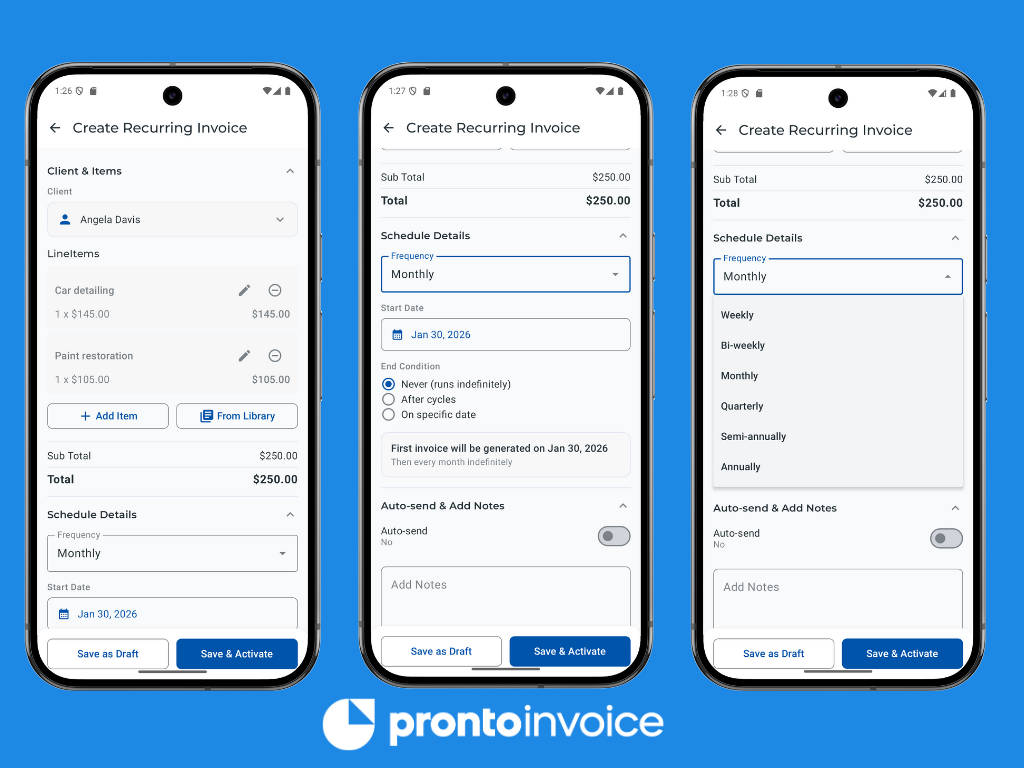
Choose the client and add items from your catalog (or enter custom items). Set quantities, prices, and tax—exactly like creating a regular invoice.
Step 2: Configure Schedule
Pick how often the invoice should generate:
- Weekly
- Bi-weekly
- Monthly
- Quarterly
- Semi-annually
- Annually
Set the start date and choose when to stop: never, after a specific number of cycles, or on a specific date.
Step 3: Activate
Save and activate. The first invoice generates on your start date, then continues on schedule automatically.
What Happens Automatically
Once a recurring invoice is active:
- Invoice generation – On the scheduled date, a new invoice is created with your template’s client, items, and amounts
- Invoice delivery – If auto-send is enabled, the invoice emails to your client immediately
- Schedule advancement – The next invoice date calculates automatically based on frequency
- Cycle tracking – If you set a cycle limit, the count decrements with each generation
You receive a notification when invoices are generated, so you always know what’s been sent.
Scheduling Options
Frequency
| Option | Schedule |
|---|---|
| Weekly | Every 7 days |
| Bi-weekly | Every 14 days |
| Monthly | Same day each month |
| Quarterly | Every 3 months |
| Semi-annually | Every 6 months |
| Annually | Every 12 months |
End Conditions
Control how long the recurring schedule runs:
- Never – Runs indefinitely until you manually stop it
- After X cycles – Stops after generating a specific number of invoices (e.g., 12-month contract)
- On specific date – Stops on or after a chosen end date
Auto-Send vs Draft Mode
Choose what happens when an invoice generates:
- Auto-send enabled – Invoice sends to the client immediately (no action needed from you)
- Auto-send disabled – Invoice saves as a draft for your review before sending
Most users enable auto-send for hands-off billing. Use draft mode if you need to review or adjust each invoice before it goes out.
Recurring Invoice Statuses
Every recurring invoice has a status indicating its current state:
| Status | Meaning |
|---|---|
| Draft | Created but not activated. No invoices will generate until you start it. |
| Active | Running on schedule. Invoices generate automatically. |
| Paused | Temporarily stopped. Can be resumed anytime. |
| Completed | Finished. Reached the cycle limit or end date. |
| Cancelled | Permanently stopped by you. Cannot be restarted. |
Creating Recurring Invoices
From the Recurring Invoices List
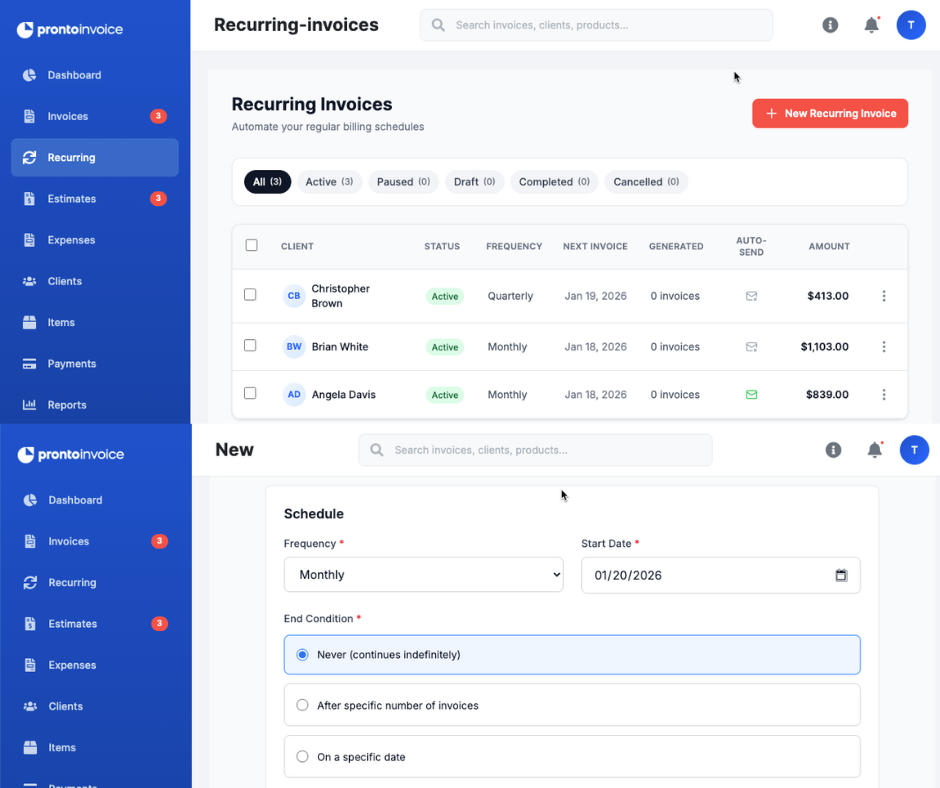
Click “New Recurring Invoice” to create a recurring invoice from scratch. You’ll set up the client, items, and schedule on a single form.
From an Existing Invoice
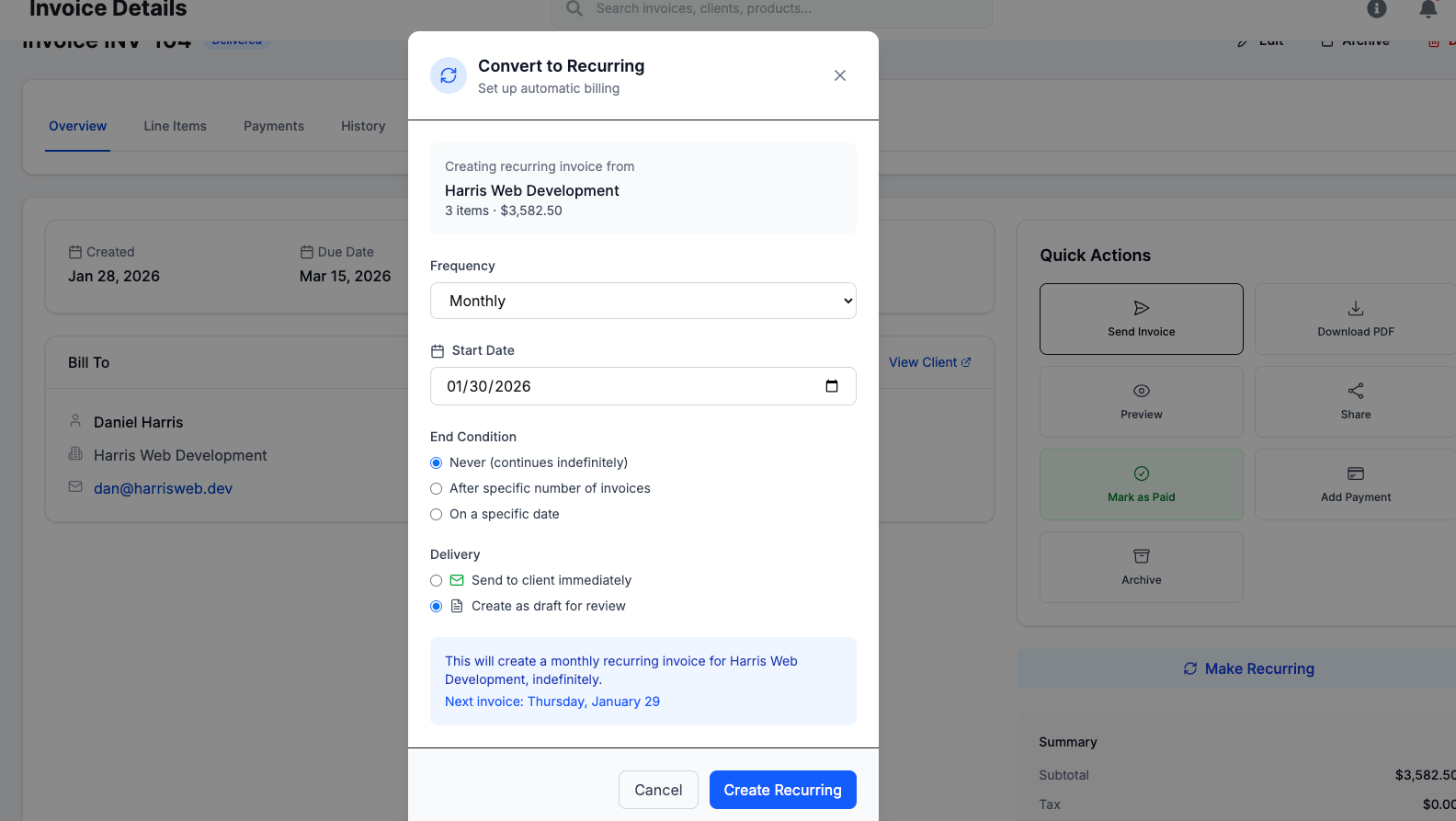
Already have an invoice you want to repeat? Open the invoice details and click “Add Recurring” in Quick Actions. The system pre-fills the client and items—you just configure the schedule.
This is the fastest way to convert one-time clients into recurring billing.
Managing Your Recurring Invoices
The Recurring Invoices List
View all recurring invoices in one place with key information:
- Client name
- Amount
- Frequency
- Status
- Next invoice date
- Remaining cycles (if applicable)
Filter by status (Active, Paused, Draft) or search by client name.
Actions You Can Take
- Edit – Change items, amounts, frequency, or end conditions
- Pause – Temporarily stop generation without losing your settings
- Resume – Restart a paused recurring invoice
- Cancel – Permanently stop the recurring invoice
Note: You cannot change the client after creation. To bill a different client, create a new recurring invoice.
Viewing Generated Invoice History
Each recurring invoice tracks every invoice it has generated:
- Invoice number and date
- Amount
- Payment status (draft, sent, paid, overdue)
Click any generated invoice to view its full details.
Who Benefits from Recurring Invoices
Field Service Professionals
Monthly maintenance contracts, quarterly inspections, annual service agreements. Whether you are an HVAC technician or a landscaper, set up once for each client and never miss a billing cycle—even when you’re focused on the job.
Example: An HVAC technician with 25 monthly maintenance clients saves 5+ hours per month on invoicing.
Freelancers and Consultants
Retainer clients, ongoing projects, subscription services. Bill automatically so you can focus on delivering work, not chasing invoices. If clients still fall behind, set up automated payment reminders to handle follow-up.
Example: A marketing consultant with 8 monthly retainer clients eliminates 8 manual invoices every month.
Subscription and Membership Businesses
Gym memberships, software subscriptions, membership fees. Handle predictable recurring revenue without manual intervention.
Example: A yoga studio with 50 monthly members automates their entire billing cycle.
Property Services
Property management fees, regular cleaning services, landscaping contracts. Bill property owners on schedule regardless of how many properties you manage.
Example: A property manager with 15 monthly clients never forgets to send a management fee invoice.
What Recurring Invoices Include
Every generated invoice contains the same information as a standard Pronto Invoice:
- Your business details and logo
- Client name and contact information
- Invoice number (auto-generated sequentially)
- Invoice date and due date
- Itemized line items with descriptions, quantities, and prices
- Subtotal, tax, and total
- Payment instructions
- Any notes you’ve added to the recurring invoice template
Generated invoices are independent—you can edit them after generation without affecting the recurring template or future invoices.